
Adding a Facebook Pixel (now called Meta Pixel) to Wix is surprisingly simple once you know where to look. In this guide, I’ll show you exactly how to integrate your existing Pixel into Wix. That way, you can start collecting basic visitor data whenever you decide to run Meta ads without having to hire a developer.
Short on Time? Quick Steps to Add Your Facebook Pixel to Wix
- Make sure your site is on Wix’s Premium plan and connected to a domain.
- Go to Settings > Marketing Integrations in your Wix Dashboard.
- Click Connect under Meta Pixel & CAPI.
- Click Connect to Facebook under Connect Meta Pixel & CAPI.
- Choose your profile in the pop-up and sign in.
- Grant the necessary permissions to Wix Apps.
Step 1. Check Your Requirements in Wix
Before you start, it’s important to confirm you meet Wix’s basic requirements. Here’s what I recommend checking first:
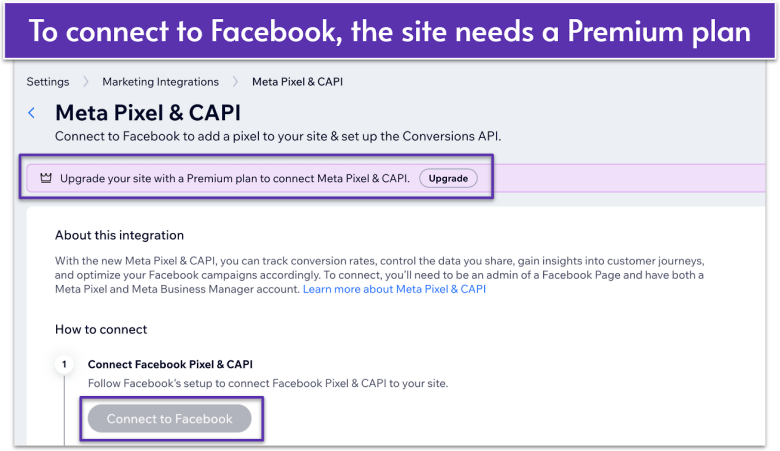
- Wix Premium plan subscription. Facebook Pixel integration typically requires a paid Wix plan so you can connect your own domain.
- Domain. If you’re using a free Wix URL (e.g., username.wixsite.com), the Pixel can’t fully track important site data. Make sure your custom domain is set up.
- Facebook Pixel. You’ll want to have a Pixel already created in Facebook Events Manager.
Step 2. Connect to Meta Pixel & CAPI
Now that you’ve confirmed you have a premium plan and a connected domain, you’re ready to open Wix’s Meta Pixel integration settings.
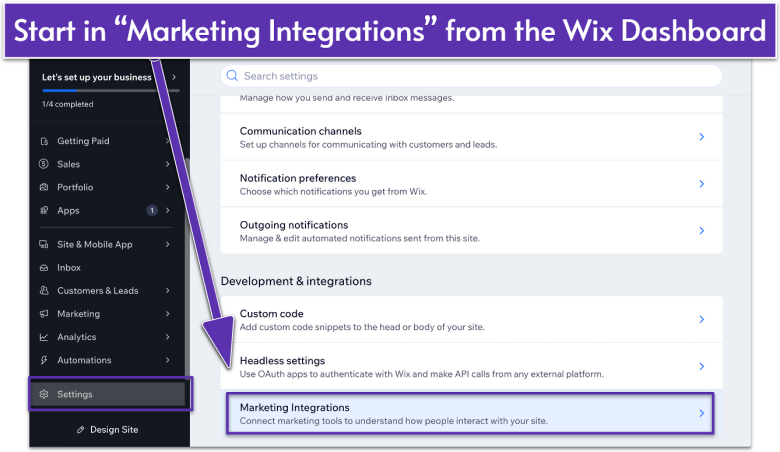
- Log in to Wix and select the site you want to track.
- Click Settings in the left sidebar.
- Click on Marketing Integrations at the bottom of the settings list.
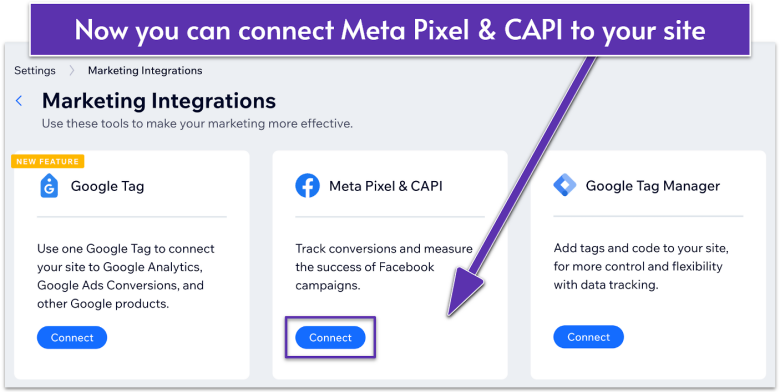

- Click Connect where it says Meta Pixel & CAPI.
Step 3. Add Your Facebook Pixel to Your Wix Site
With the Meta Pixel & CAPI integration page open, adding your Pixel ID is super straightforward.
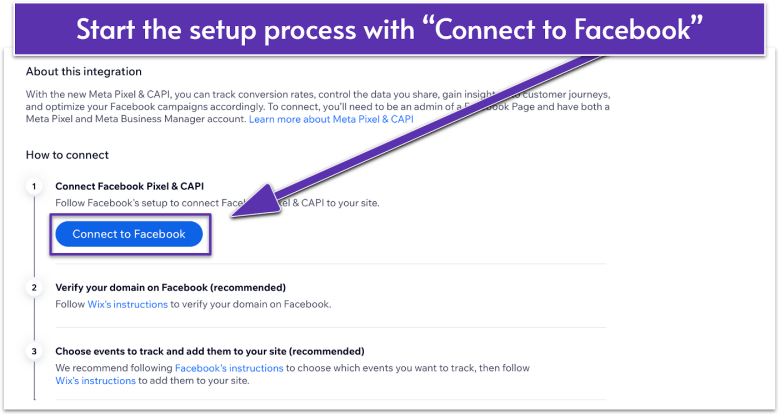
- Click Connect to Facebook to begin the setup process.
- Choose your profile in the pop-up and click Next.
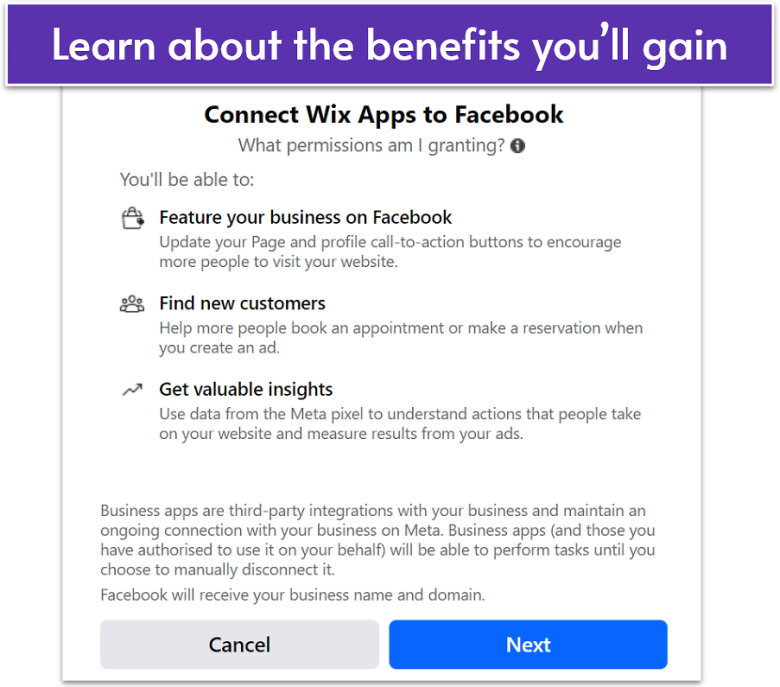
- Review the permissions you’ll be granting when you connect Wix Apps to Facebook. Click Next to continue.
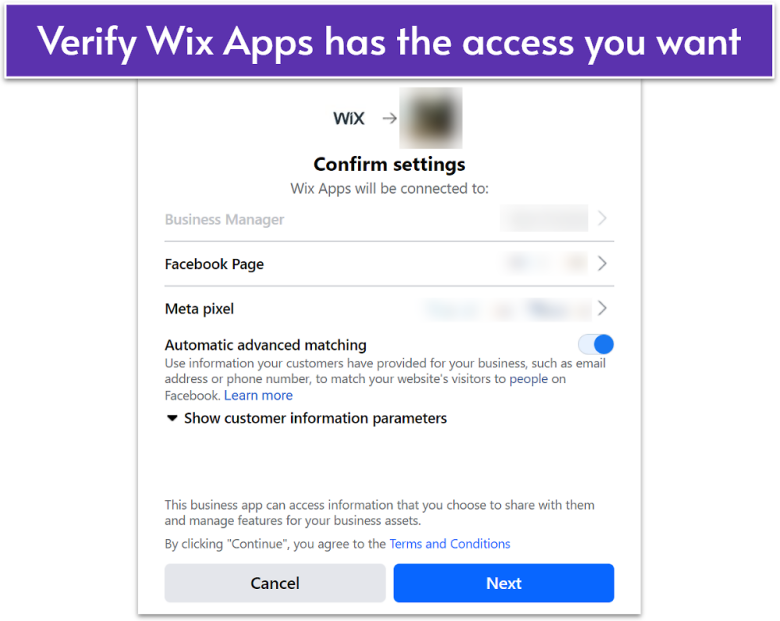
- In the Confirm settings screen, make sure the following are connected to the correct accounts:
- Business portfolio
- Facebook Page
- Meta Pixel
- Click Continue if all your settings are correct.
- Review the details in the What is Wix Apps allowed to do? screen. Click Next to start linking your accounts.
- Click Done after finishing the setup.
That’s it! Once you’ve connected your Facebook Pixel to your Wix site, you should start seeing data show up in your Facebook Business Manager. Pretty exciting, right?
If you’re not seeing any data yet – or something seems a little off – that’s okay! Sometimes, things don’t connect perfectly right away. The best way to get help is by heading over to Facebook’s Business Help Center or checking out their troubleshooting tools.
Disconnect Your Wix Site from Facebook Pixel
Do you need to disconnect your site from the Meta Pixel & CAPI integration? No worries – it’s a quick process you can handle right from your Wix dashboard. Just follow these steps:
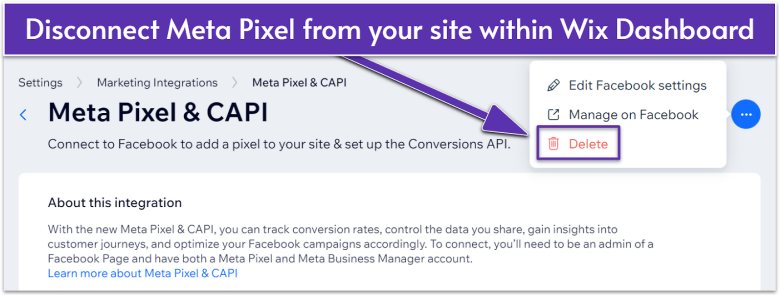
- Go to Settings, then click Marketing Integrations in your Wix Dashboard.
- Click View under Meta Pixel & CAPI.
- In the top-right corner, click More Actions .
- Select Delete from the dropdown.
- Click Disconnect to confirm.
If you disconnect the integration directly through Facebook instead of Wix, events might still be sent. You could also run into issues trying to fully disconnect it in your Wix Dashboard.
You’re Ready to Gather Insights
Your Wix site is now connected to your Facebook Pixel. This means you can start collecting valuable data on page views, visits, or even future ad performance, all without setting anything else up in Facebook.
For advanced features like custom events, domain verification, or conversions, you’ll still need to hop into your Facebook Business Manager. But for many, these simple Wix steps are all you need to begin tracking basic visitor insights.
Have fun exploring your new analytics!