
Adding a PDF to your Wix website can be incredibly useful for sharing portfolios, lesson materials, or printable guides. Instead of sending visitors off to external links, Wix’s built-in PDF Viewer app lets you display documents right on your page for free, so viewers can read, download, or print everything on the spot. In this guide, I’ll show you how to install and set up the PDF Viewer in just a few steps – no coding or third-party tools required.
Short on Time? Follow These Quick Steps to Add a PDF to Your Wix Site
- Add the PDF Viewer app from Wix’s App Market.
- Upload your PDF file directly through the app.
- Choose a preset and adjust design settings.
- Publish your site. Your PDF is ready for visitors to view, download, or print.
Step 1. Add the PDF Viewer App from Wix’s App Market
Wix offers a dedicated PDF Viewer app you can install for free. This tool helps visitors view, download, or print your PDFs – all without having to leave your website.
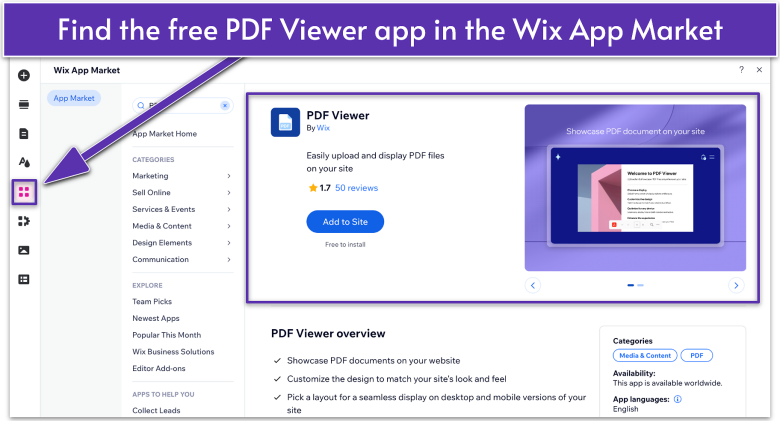
- Click the Add Apps icon on the left side of the Wix Editor.
- Type “PDF Viewer” in the search bar and hit Enter.
- Select the PDF Viewer app from the app search results. Make sure it’s the one developed by Wix.
- Click Add to Site to install it.
The PDF Viewer now appears on your page. If it’s not where you want it, just drag it around or use cut-and-paste to move it to another page.
I first tried PDF Viewer on my filmmaker site’s pricing page to share a printable guide of my shoot packages. By installing the app, I was able to display the PDF directly on the page, so clients didn’t have to click away.
Step 2. Upload Your PDF File
Once the PDF Viewer is on your site, it’s time to add your actual document. This can be anything from a restaurant menu to a lesson plan – or in my case, a simple package piece.
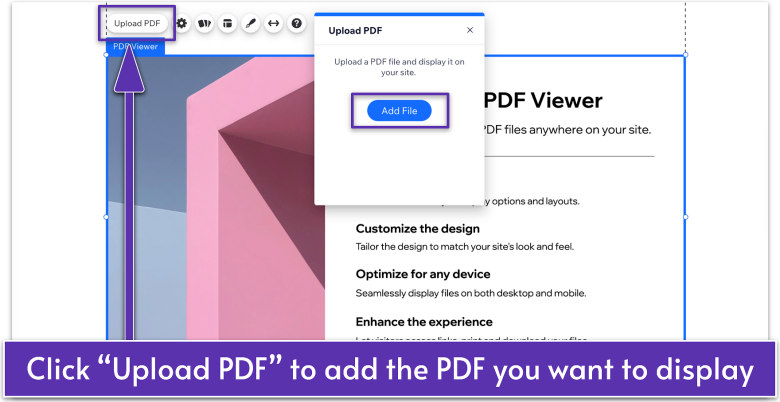
- Hover over and select the PDF Viewer app in the Editor.
- Select Upload PDF.
- Click Add File to choose the PDF you want to display.
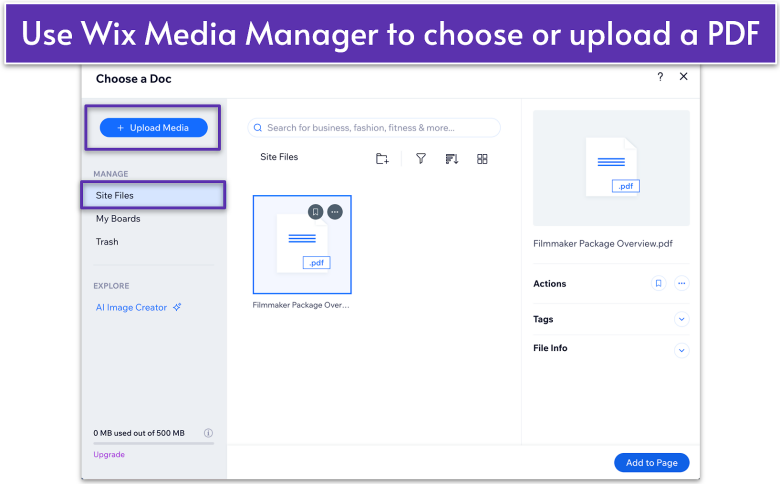

- Choose your PDF from the Wix Media Manager. If you’re uploading a new file, click Upload Media. Make sure your file is in PDF format.
- Select Add to Page to insert this file into the PDF Viewer app.
I added my Filmmaker Package Overview PDF so visitors could read through my packages without leaving my site. They can also download and print it out for easy referencing when we hop on our discovery session.
Step 3. Adjust Your PDF Viewer Settings
The free PDF Viewer by Wix includes common layouts and styles. For example, some display the PDF directly on the page, while others show it as a button that pops open a new view.
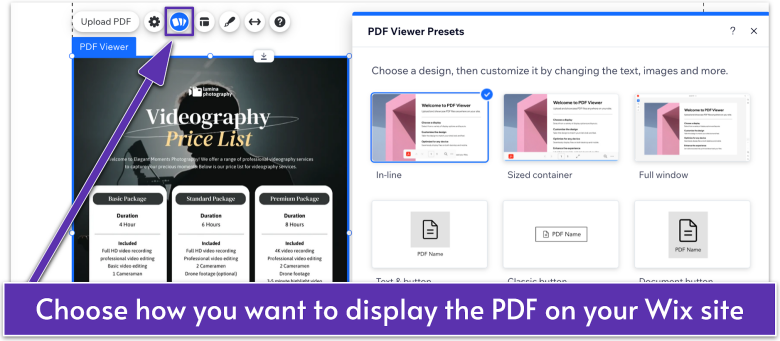
- Hover over and select the PDF Viewer app in the Editor.
- Click the Presets icon and choose your preferred design (e.g., In-line, Document button, etc.).
Depending on your preferred preset, you may have the following options available:
- Click the Layout icon to display and adjust button text and icon.
- Click the Settings icon to manage preset-specific settings.
- Click the Design icon to customize the button design.
Currently, it’s only possible to allow users to download and print your PDF when you choose the button layouts. I chose a Document button preset so that my file appears neatly as a clickable button. When visitors click or tap it, a nice in-site preview pops open, complete with download and print options.
Step 4. Preview and Publish Your Site
Once you’ve added and configured your PDF, click Preview to see how the PDF appears on your site.
If everything looks and works as expected, click Publish to make your site live. Your PDF is now ready for visitors to view, download, or print.
Editing or Replacing an Existing PDF
Need to swap out a current file for a new version? No sweat – Wix makes it easy.
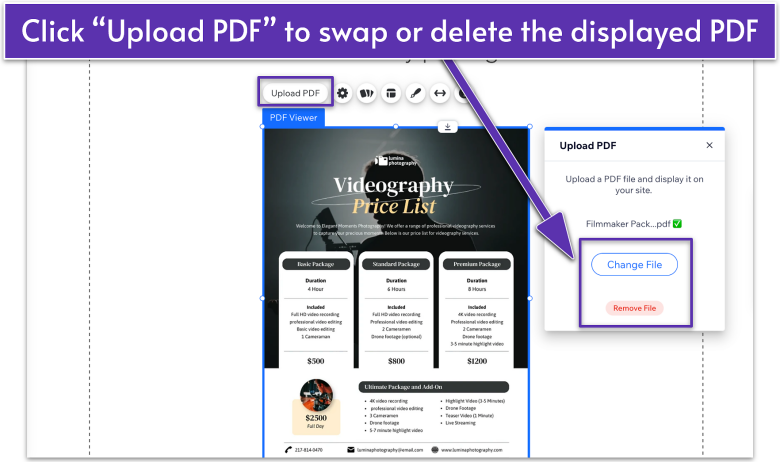
- Hover over and select the PDF Viewer element again.
- Click the Upload PDF button.
- In the Upload PDF panel:
- Click Remove File to delete the current PDF
- Click Change File to pick a new PDF. You can choose a PDF from the Wix Media Manager or upload a new file.
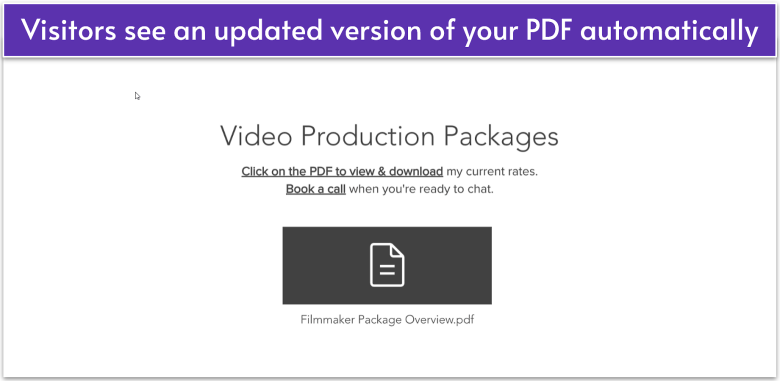
I once updated my Filmmaker Package Overview PDF to reflect new pricing. Replacing the old file took just a few clicks, and the updated file showed up instantly for prospective clients visiting my site.
Showcase Your PDFs With Pride
By following these steps, you’ll have seamlessly embedded and displayed your PDF in Wix without extra hassle or external tools. Whether you’re showcasing a menu, providing worksheets, or offering a brochure download, Wix’s PDF Viewer app keeps everything user-friendly and in one place. Now your site visitors can access, view, or print your document with ease – right where they need it most.