
In this guide, you’ll learn the steps to add columns in Wix Editor, adjust their width, and customize them for your site. No special tools or coding are required – just your Wix account.
Short on Time? Quick Steps to Add Columns in Wix
- In the Wix Editor, add or select a strip.
- Click Layout or Manage Columns in the strip toolbar.
- Click Add Column.
- Adjust column widths and spacing.
- Add text, images, or buttons inside columns.
- Preview the strip layout on desktop and mobile.
Step 1. Add or Select a Strip
In Wix, columns don’t stand alone. They’re added inside strips, which are horizontal sections you can place anywhere on a page. Strips act as the framework that holds and organizes columns, making sure they stay aligned and responsive.
If you already have a strip on your page, click directly on the area until you see the blue “Strip” label.
To add a new one:
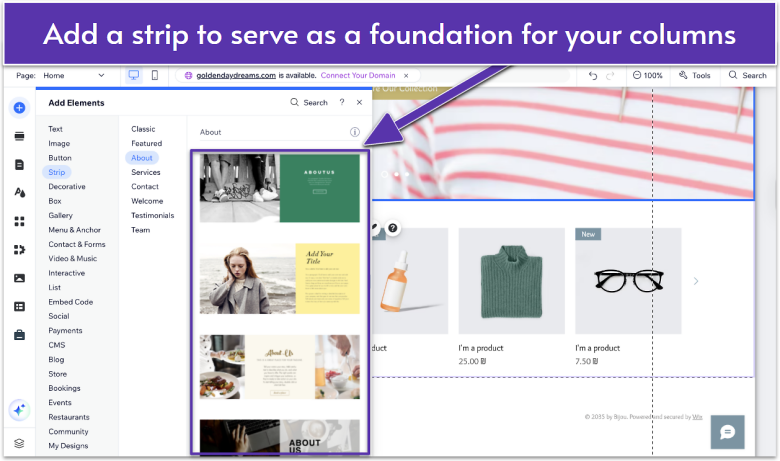
- Click Add Elements in the left sidebar.
- Go to Strip.
- Pick a strip with 2 or 3 columns (you can add more later) from any strip category. Click or drag it into place on the page.
Step 2. Add Columns to a Strip
You can add columns to a strip in two ways, depending on whether the strip is empty or already has columns.
Adding Columns to an Empty Strip
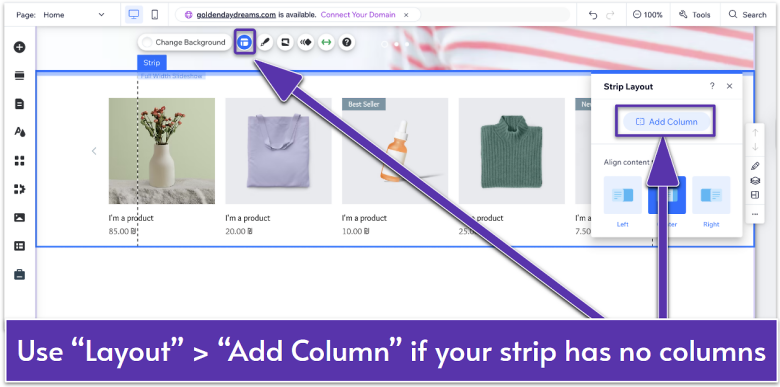
- Click Layout in the strip toolbar.
- Click Add Column in the Strip Layout panel. The strip will be divided into two columns.
Adding More Columns to a Strip
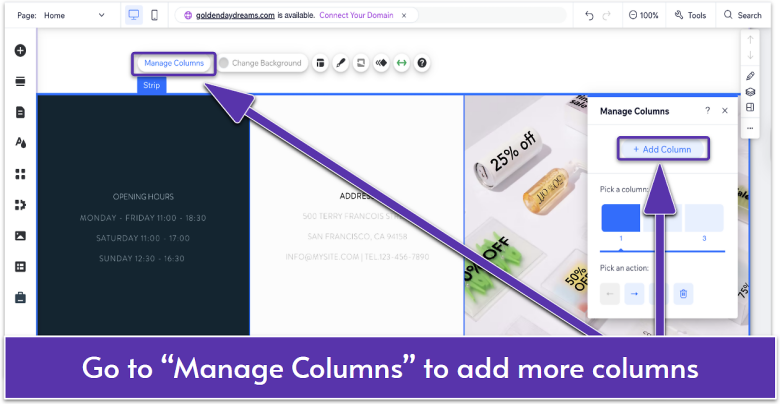
- Click Manage Columns in the strip toolbar.
- Click Add Column to add more columns. You can have up to 5 columns in a strip.
Step 3. Adjust the Width of Each Column
Wix lets you resize columns to balance your layout and reverse their order.
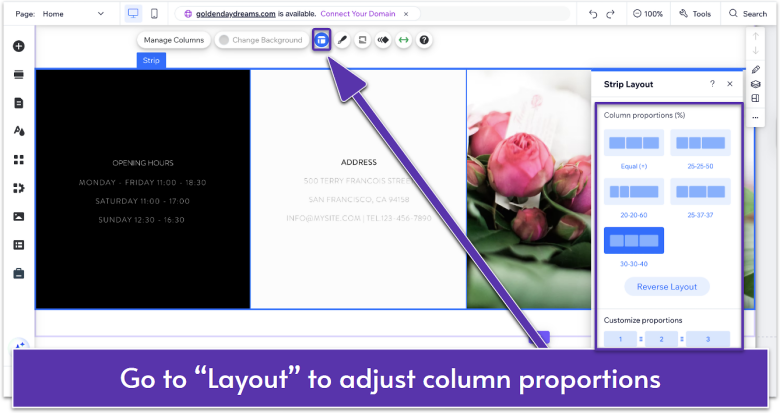
- Click Layout in the toolbar of the selected strip.
- In the Strip Layout panel, you can change column proportions in various ways:
- Choose a preset (like equal widths) under Column proportions (%).
- Drag the dividers between columns under Customize proportions to adjust spacing manually.
- Click Reverse Layout to flip the column proportions from left to right.
Even widths work best for content where each item has equal importance, like three same-sized columns showing your services. Uneven columns are better when you want to highlight something specific, like a featured product, news update, or a call-to-action.
Step 4. Add Content to Your Columns
Each column can hold text, images, buttons, or other elements.
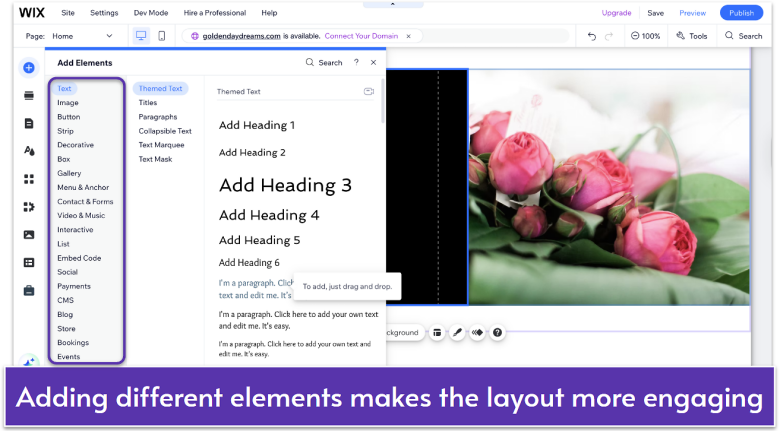
- Click Add Elements in the left sidebar.
- Select the element you want to add, such as text, images, or buttons.
- Drag your chosen element into a column. Wait for the Attach to Column box to appear before dropping the element to ensure it stays in that column.
- Adjust the element as needed to fit your layout.
Step 5. Customize Column Backgrounds
Columns don’t just hold content – you can style them too. Adding backgrounds is a great way to highlight key sections, like features or pricing.
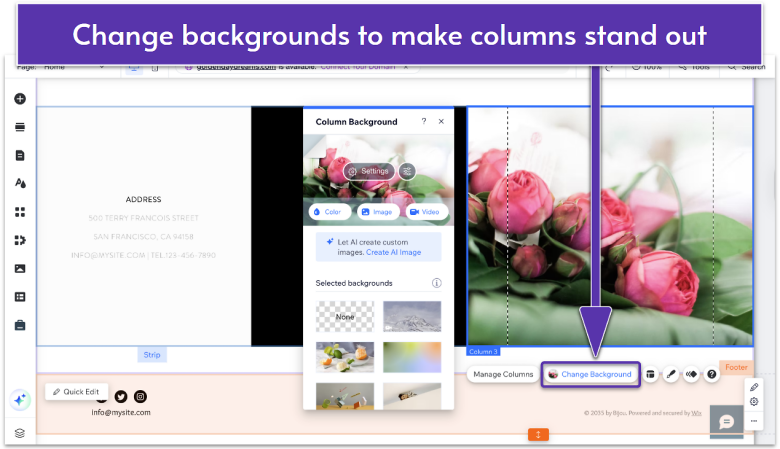
- Select a column.
- Click Change Background in the column toolbar.
- Choose a background type: color, image, or video.
Step 6. Preview and Adjust for Mobile
Columns may look different on smaller screens. Always preview your design before publishing to make sure your layout works across devices.
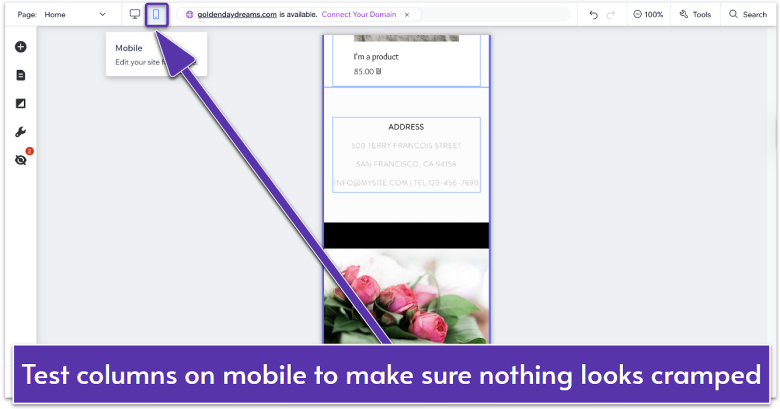
- Click Mobile View in the top menu bar.
- Check how your columns stack vertically.
- Adjust spacing, align any elements that look off, or hide non-essential elements for mobile.
Make Your Wix Layout More Flexible
Columns are one of the simplest ways to give your Wix site structure. They can break up long sections of text, display services or features side by side, or create space for visuals like images and buttons.
Once you’ve built a column layout you like, save it so you can reuse it on other pages. This keeps your design consistent and saves time when making edits later.
Think of columns as building blocks – when used well, they make your site clearer, easier to navigate, and more professional-looking.